Add or import residents
Type in residents one at a time, or import your roster from a CSV or Excel file.
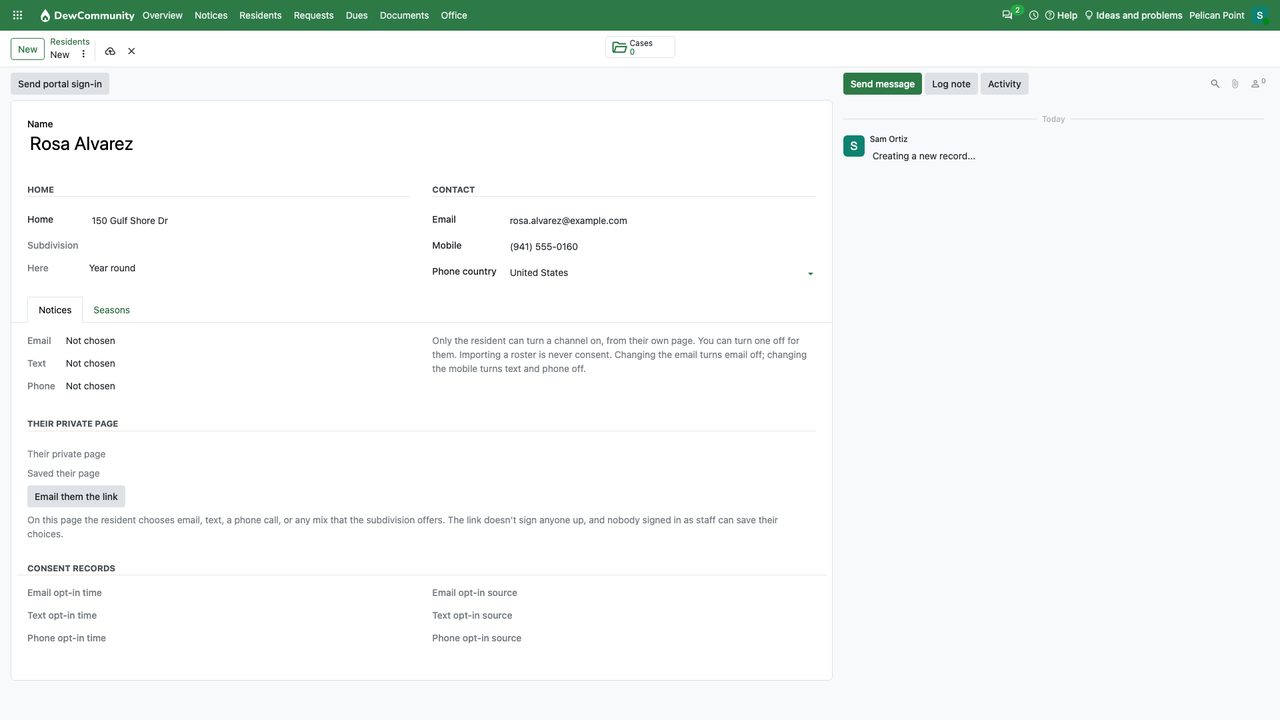
Add one resident
- Under Residents, choose New.
- Type their name, pick their house, and add their email and their mobile.
- If they live there only part of the year, add the months they're here on the Seasons tab, such as November to April.
A notice can then go to everyone, or only to the residents who are here this time of year.
Import your roster
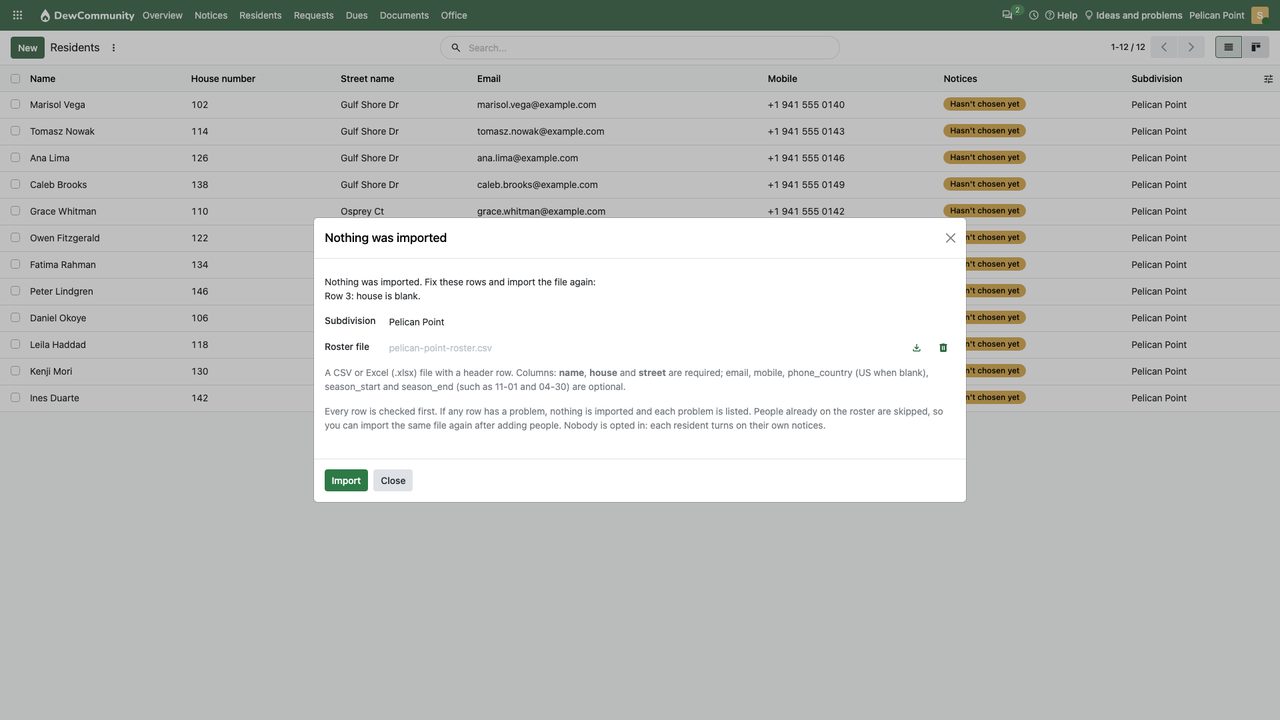
- Open Residents, Import roster.
- Choose a CSV or Excel (.xlsx) file with a header row. The columns name, house and street are required. email, mobile, phone_country (US when blank), season_start and season_end (such as 11-01 and 04-30) are optional.
- Choose Import.
Every row is checked first. If any row has a problem, nothing is imported and each problem is listed, so you can fix the file and import it again. Streets and houses that aren't there yet are added.
People already on the roster, with the same name, house and street, are skipped and listed, so you can import the same file again after adding people.
Nobody is signed up for them
Adding or importing a resident never signs them up for notices. You can turn a notice off for a resident, but only they can turn one on, from their own page. See How residents opt in.
If you change a resident's email, their email notices turn off until they choose again.
When someone moves away
Select them under Residents and choose Actions, Archive, instead of deleting them. The Archived filter finds them again, and you can restore them.