How residents opt in
Each resident chooses their own notices on a private page. Here's how to send them the link.
Every resident has a private page where they choose how they get your subdivision's notices. Only the resident can save their choices there, and being on your roster never signs anyone up.
Send residents their page
- Once your office has chosen its plan, open a resident and choose Email them the link. The link itself is under Their private page.
- To email many at once, select them under Residents, then choose Actions, Email the enrollment link.
The email tells them they were added to the notice list and that this didn't sign them up. Residents without a real email address are skipped, and you're told how many were sent and how many skipped.
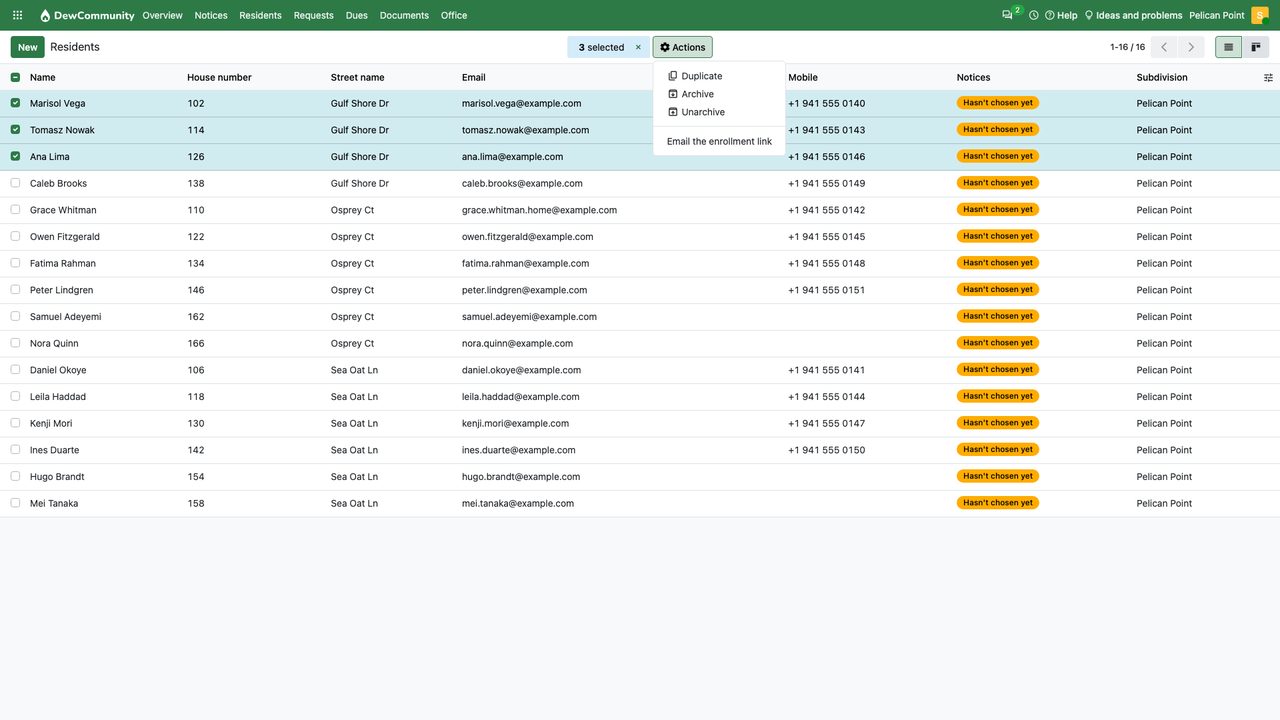
See who hasn't chosen yet
The Overview shows, for each subdivision, how many residents get notices and how many haven't chosen yet. Open that count to see those residents and email them their links.
What the resident does
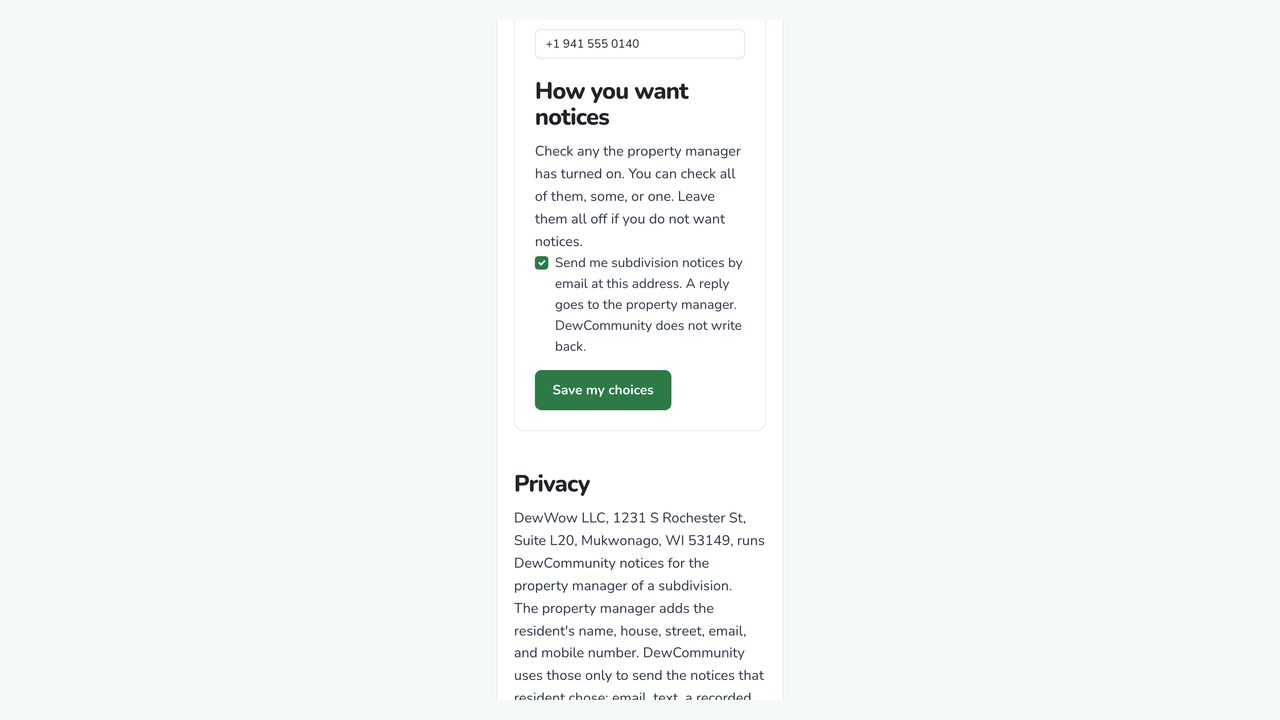
- They open their page on a phone or a computer. They don't need a login.
- They check how they want notices and choose Save my choices. Today notices go by email. Texts and recorded calls are coming.
- They can leave every box unchecked, and they can change their choices or stop notices on the same page at any time.
Every notice email ends with Change or stop these notices, a link back to their page.
The record of each choice
Each choice is kept with the time, where it was made and the exact words the resident agreed to. You'll find them under Residents, Consent records, and nobody can change or delete one.
If you open a resident's page while you're signed in, you can see it, but you can't save it. Only the resident can.
To show residents how it works before their email arrives, send them to dewcommunity.com/enroll.