Send a notice, and a test to yourself
Write a notice once, send yourself a test, then send it to the residents who chose email.
Write the notice
- Under Notices, choose New, and pick the subdivision.
- Leave Street empty for the whole subdivision, or pick one street.
- Under Who receives it, choose Only residents who are here this time of year, or Everyone, including residents who are away.
- To start from words you've saved, pick a Template. It fills in the notice, and you can change anything.
- On the Email tab, write the Email subject and the email. Texts and recorded calls are coming.
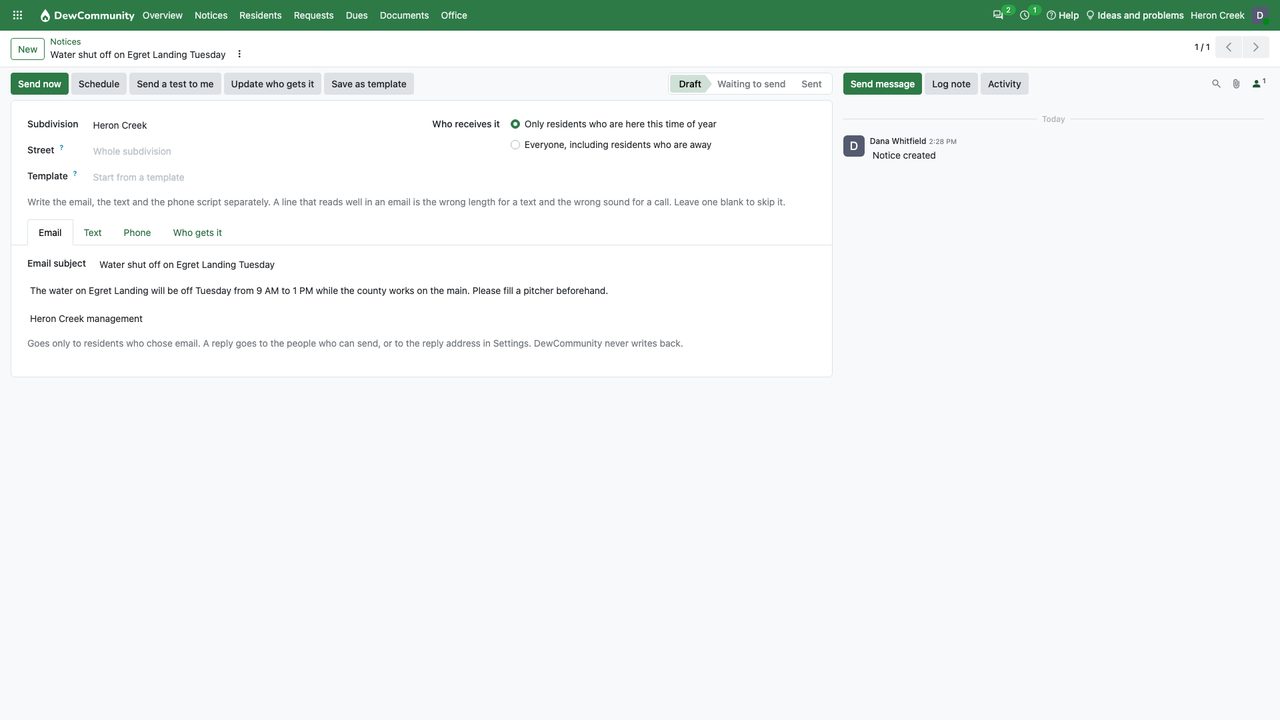
The Who gets it tab counts the residents who get it by email. Only residents who chose email on their own page are counted.
Send a test to yourself
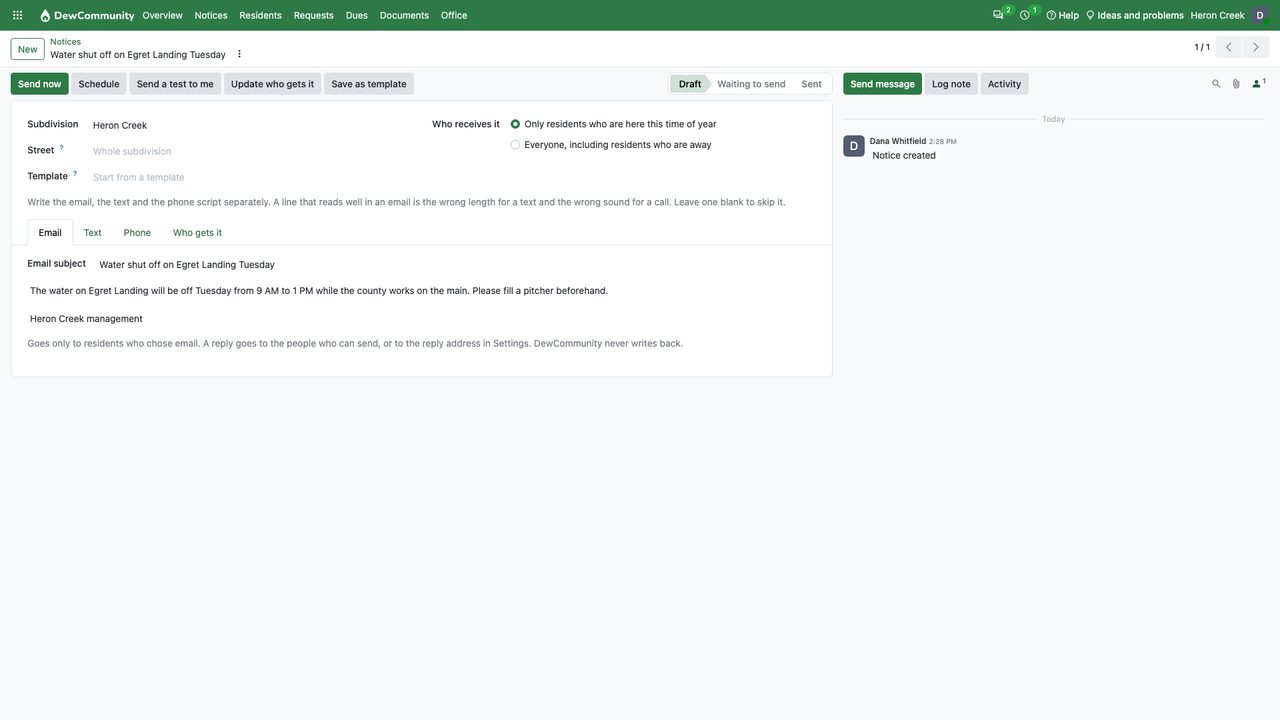
Choose Send a test to me, then Send the test. The email comes to your own address the way residents will get it, with [Test] in its subject and a line where each resident's own link will be. Nobody else gets it, and you can send up to 20 test emails a day.
Send it
- Once your office has chosen its plan, choose Send now, or Schedule to pick a day and time.
- Outside 8 a.m. to 9 p.m. Eastern, DewCommunity asks you to confirm first.
Only the managers your office picked under Notices, Settings, Who can send can send a subdivision's notices. Sending runs in the background, and reaching everyone can take up to an hour.
After it's sent
Each resident's row on Who gets it shows how their email did. Anything that couldn't be sent becomes a to-do for you, with a note on the notice.
A sent notice is locked. To send a changed one, choose Actions (the gear), then Duplicate, and change the copy.
Use the words again
Choose Save as template to keep the notice's words for next time. Your templates are under Notices, Templates.